
How to Use Sales Navigator Account IQ Before Sales Calls
Account IQ turns a Sales Navigator Account Page into a one-click pre-call brief. Here is the 10-minute routine I use before every discovery call.
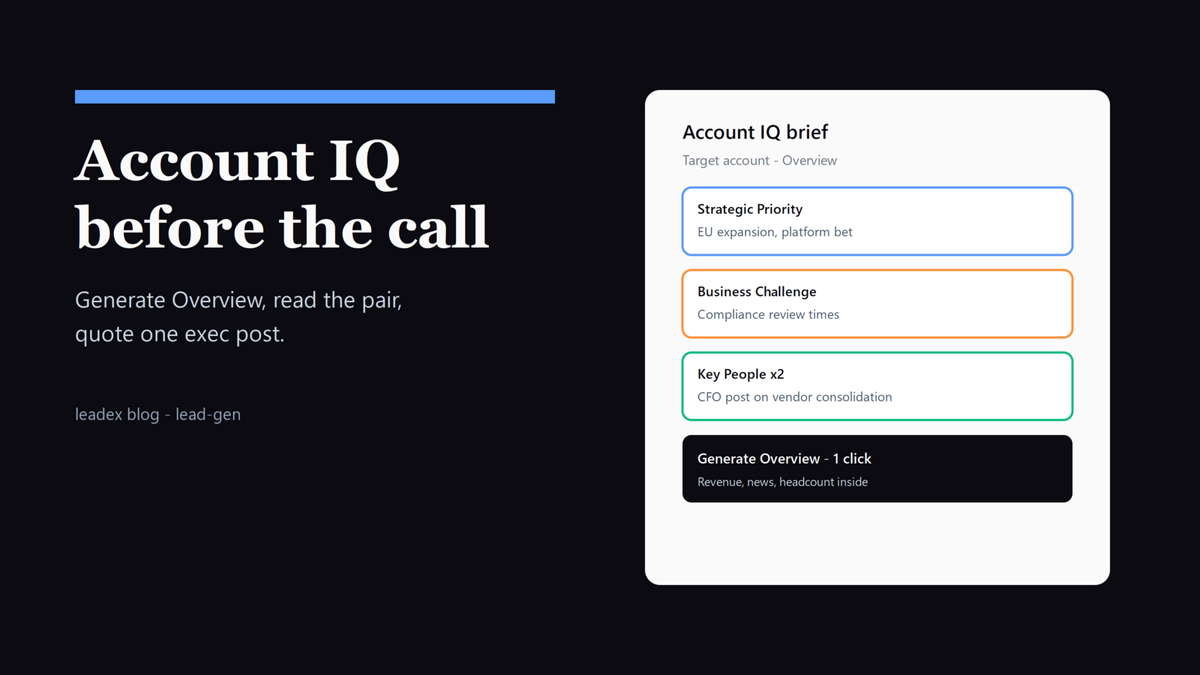
I used to prep for discovery calls the embarrassing way: twelve tabs, a half-read 10-K, three LinkedIn profiles, and a guess about what the company actually cared about. My notes on buyer intent signals helped me pick which accounts to call, but the hour before the call was still chaos.
LinkedIn Sales Navigator Account IQ compresses most of that hour into one panel. Open an Account Page, click Generate Overview, and you get financials with revenue estimates, strategic priorities, business challenges, Key People, what execs are posting, headcount moves, competitors, and fresh news, all sourced and clickable. It went GA on Dec 6 2023 after a Nov 14 rollout to Advanced and Advanced Plus, it is still English-only as of 2026, and it works best for companies with more than 500 employees, per the Account IQ launch post and the Account IQ help page.
Rather than spending hours hunting the internet for relevant information, sellers can get an easy-to-read synthesis right in Sales Navigator that is layered with LinkedIn's proprietary data.
The key paragraph for me is the one about trust: LinkedIn says every section shows its sources so you can verify or dig further. I take that seriously, because Account IQ mixes first-party LinkedIn data such as executive team and headcount growth with public information, and LinkedIn warns that some sections may not display for some accounts. Treat it as a brief to check, not a brief to quote blind (I believe that distinction matters more than any single feature in the panel).
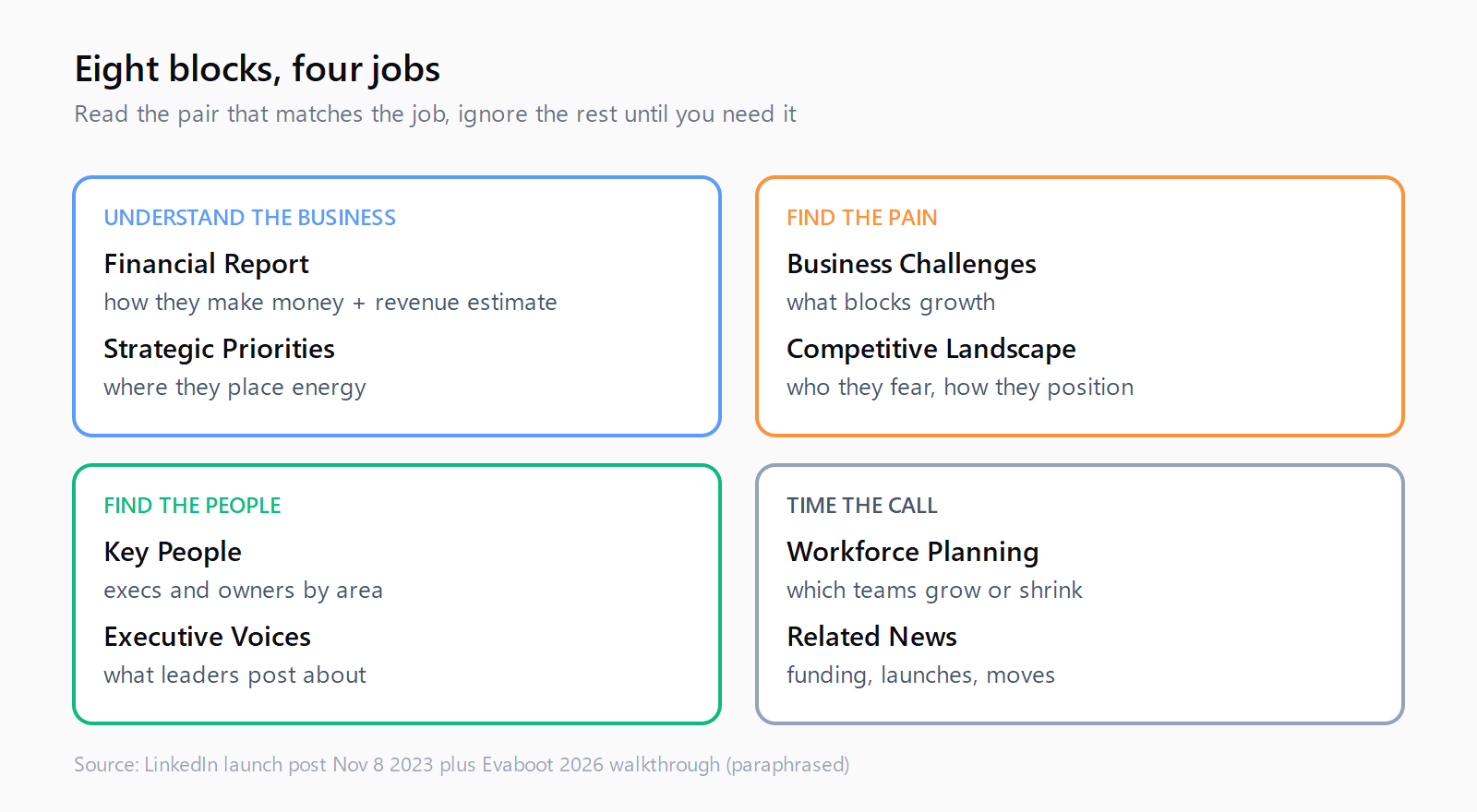
Where to find Account IQ and generate your first overview
Sign in to Sales Navigator, open the Accounts tab, and pick a target company. On the Overview tab you will see an Account IQ section. Click Generate Overview, sometimes labeled Generate Insights in newer screenshots, and the summary pops in seconds. Practitioner JB Jezequel, cofounder of Evaboot, walks the exact clicks with screenshots in his Account IQ walkthrough, and his path matches what I see: Accounts, company page, scroll to Account IQ, Generate Insights.
If the button is missing, two checks come first. Your admin may have switched Account IQ off for the whole contract in Admin Settings, which mutes it for everyone. Or the account may simply fall outside coverage. LinkedIn is candid that Account IQ is not available for all companies, and in practice that means smaller and thinner-profile companies often return a partial panel or a notice that the account does not yet qualify. I hit this on sub-500-employee startups regularly, which is why I run Account IQ on enterprise target accounts and use open-web research for the long tail.
Set up product personalization before you judge the output. Under settings you can describe what you sell, and Account IQ adds a short block with ways your product maps to the account. Without that input the pitch suggestions read generic. With it they read like a first draft you can steal a line from, which is the whole point.
How to read the Strategic Priorities and Business Challenges blocks
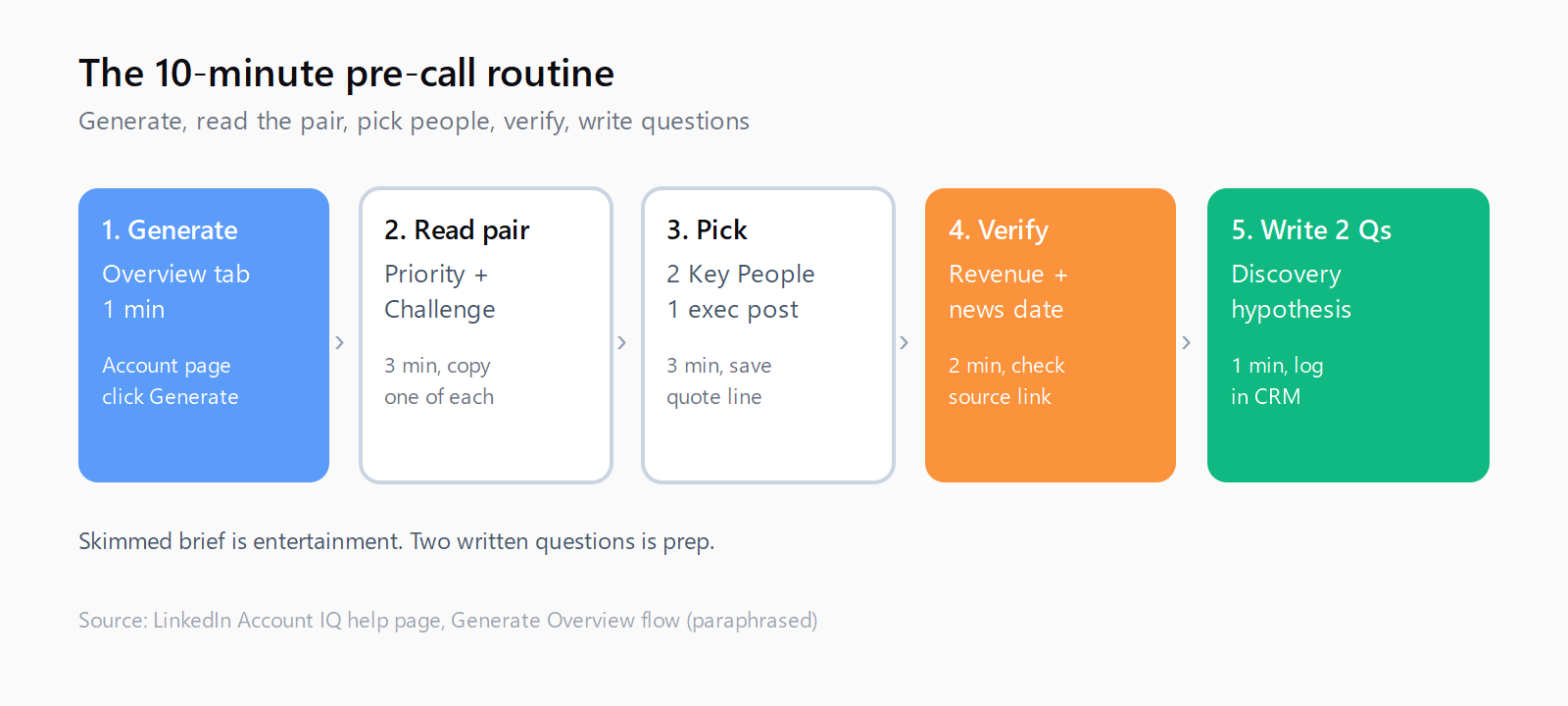
These two blocks are the reason to open Account IQ at all. Strategic Priorities tells you where the company says it is placing energy, expansion, efficiency, platform bets. Business Challenges tells you what stands in the way, regulation, churn, cost pressure, integration debt. Read them as a pair and you have your discovery hypothesis in two sentences. My rule: copy one priority and one challenge verbatim into my call notes, then write the question each implies.
A concrete example helps. If priorities mention international expansion and challenges mention compliance risk in new markets, my opener is not "tell me about your priorities." It is "your team talks about EU expansion while flagging compliance review times - how are you handling vendor approvals in new regions?" That question only exists because I read both blocks together. The Spotlight filters post I wrote earlier covers a different way to surface the same timing cues, but Account IQ gives you the wording to use on the call itself.
Verify before you assert. Revenue estimates and headcount figures are estimates layered from LinkedIn data and public sources, not audited filings. I cross-check the Financial Report line against the company site or a recent filing when the number will appear in my opener, and I treat headcount growth by department as directional. It still beats starting from zero, and it takes about ninety seconds (!).
How to turn Key People and Executive Voices into openers
Key People lists the executives who matter for the deal, and Executive Voices shows what those people are actually posting about on LinkedIn. That second part is underused. A CFO posting about consolidating vendors tells you more than any firmographic filter. Quote one specific post in your first line and you sound like someone who did the reading, because you did.
My workflow is dull on purpose. I pick two names from Key People who own my problem area, open their recent posts from Executive Voices, and save one quote each. Then I add both to a lead list for the account and export or sequence from there. If you message inside LinkedIn, mind the platform caps - I ran into LinkedIn invite limits the first time I tried to blitz five stakeholders at once, and pacing the outreach fixed the block faster than any template tweak.
Workforce Planning and Related News close the loop. If engineering headcount is up 20 percent quarter over quarter while support is flat, I ask about onboarding load. If Related News flags a fresh funding round or a leadership change, that is my first sentence: "Saw the Series B..." beats any generic intro, and Account IQ hands you the link so you do not have to hunt for it. To be fair, news recency varies by account, so I still glance at the linked article date before I cite it.
How to surface Account IQ inside your CRM
On Advanced Plus, Account IQ does not stay trapped in Sales Navigator. Embedded Experiences surface the same brief inside HubSpot, Salesforce, and Dynamics 365: strategic priorities, business challenges, estimated revenue, and a one-click summary on the company record. Your admin must enable Account IQ in Sales Navigator Admin Settings first, and each rep must sign in to LinkedIn inside the CRM to see the panel. When it loads, the pre-call brief lives where the call notes live, which is exactly where it should be.
There is a seam here I think about a lot, because it sits between discovery and enrichment. In Leadex the same idea shows up as a plan preview you approve before the agent touches the web: describe the ICP in plain English, approve the research plan with concrete sources, and company enrichment that "typically completes in under 60 seconds" per batch fills headcount, industry, funding, and LinkedIn URLs into one deduped CSV. Account IQ briefs one account you already picked; Leadex builds the list of accounts worth briefing in the first place.
My honest caveat after a month of using both: Account IQ is fast and quotable, but narrow. It covers larger English-language accounts well and thins out fast below that line. Open-web research still wins for niche ICPs, private companies with sparse LinkedIn footprints, and anything where you need a URL and timestamp per row for audit. I use Account IQ to prep the call and broader research to pick whom to call, and I keep both notes in the CRM so the next rep sees the same brief.
Abbie White, CEO at Sales Redefined, put the time argument bluntly in the launch coverage: "Account IQ will save sales professionals hours in research, significantly increase their productivity and best of all increase their outreach success." That matches my experience on enterprise accounts, with the qualifier that the hours saved only count if you turn the brief into two written questions before the call. A summary you skim is entertainment. A summary you convert into questions is prep. (Correction: earlier I assumed coverage had expanded past English - it has not as of this writing, so non-English accounts still get thinner panels.)
FAQ
Where is Account IQ in Sales Navigator?
Open the Accounts tab, pick a company, and scroll to the Account IQ section on the Overview tab. Click Generate Overview to build the brief. If the section is missing, ask your admin whether Account IQ is enabled.
Which Sales Navigator plan includes Account IQ?
LinkedIn lists Account IQ on Core, Advanced, and Advanced Plus as of 2026, with an admin-level on/off toggle. CRM Embedded Experiences with the same insights require Advanced Plus plus a LinkedIn sign-in inside your CRM.
Does Account IQ work for small companies?
Poorly. LinkedIn designed it around companies with more than 500 employees and warns some accounts show partial sections or no brief at all. Use it for mid-market and enterprise targets and research smaller accounts on the open web.
Can Account IQ data sync to my CRM?
On Advanced Plus it surfaces inside HubSpot, Salesforce, and Dynamics 365 record pages after your admin enables it, showing priorities, challenges, estimated revenue, and a one-click summary. It does not bulk-write to custom fields - it renders as an insights panel.
How accurate is Account IQ?
Directionally good, not gospel. LinkedIn blends its own headcount and executive data with public sources and shows citations per section. Verify revenue and news dates against primary sources before you quote them to a buyer.