
How to Use LinkedIn Sales Navigator Buyer Intent to Prioritize Accounts
LinkedIn Sales Navigator Buyer Intent uses 180+ signals to flag accounts engaging right now. Filter Account Hub by score, install the Insights tag, stack with other signals.
Most Sales Navigator Advanced seats I see in the wild never click the Buyer Intent tab. Reps default to a saved lead search, scroll the same two account lists, and treat the Account Hub as an org chart. That habit costs them the one piece of LinkedIn-native data they actually pay for: a composite score, built from 180+ signals, that says this account is engaging with you right now.
The feature ships on Sales Navigator Advanced and Advanced Plus only. Core seats do not see it. If your team is on Core and the Buyer Intent tab is missing, that is a plan-tier issue, not a regional rollout (I checked, mid-May 2026). Everything below assumes Advanced or higher.
Buyer Intent is available for Sales Navigator Advanced and Advanced Plus edition users only. [...] The system uses 180+ distinct insight signals combined into an aggregated Buyer Intent Score. [...] Companies who have added the Insights tag to their website gain additional data in their aggregated scores and alerts and receive insights on website visits.
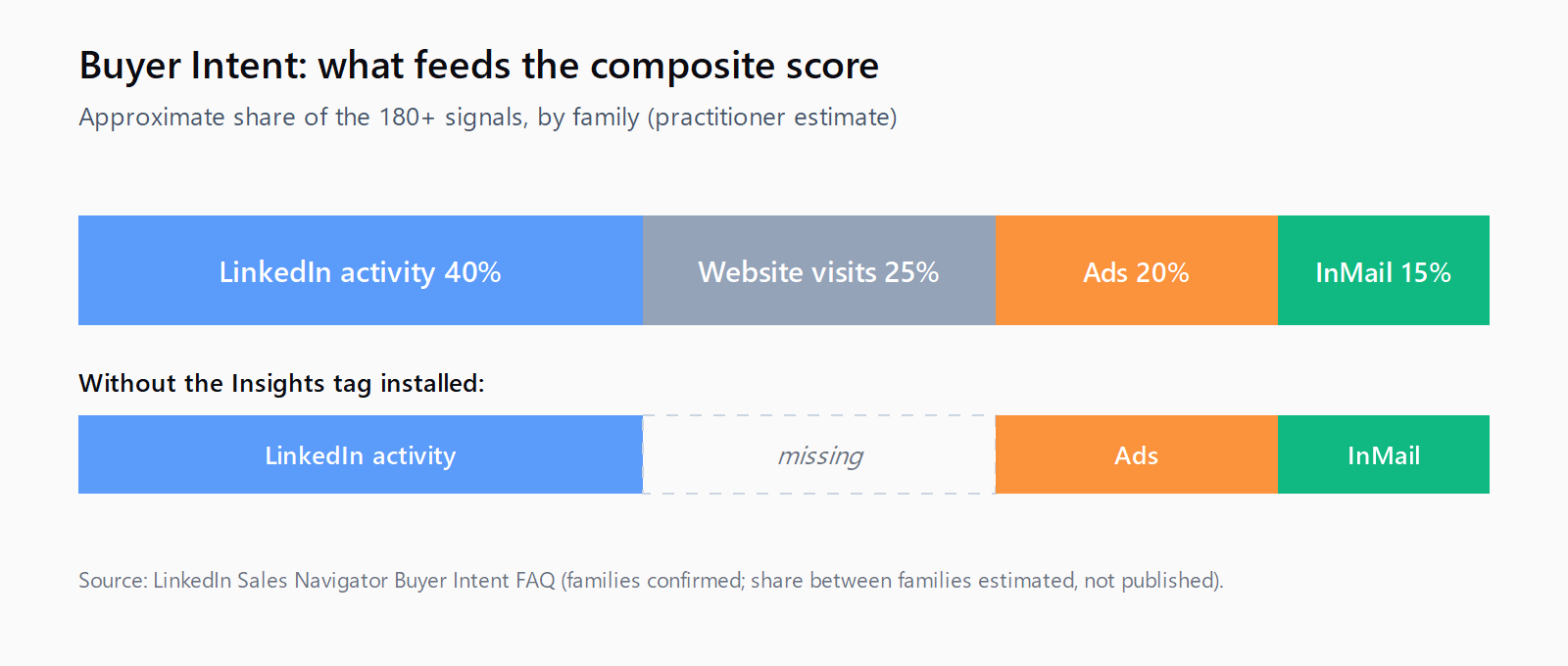
That paragraph is the one most reps skip. The headline number is 180+ signals across four families: LinkedIn.com activity (profile views, page follows, comments, reactions), LinkedIn ad interactions (clicks, lead form completions), LinkedIn messaging (InMail accept/decline), and off-LinkedIn website visits captured via the Insights tag. Without the Insights tag installed on your site, you are scoring on three of the four families. That is the single biggest miss I see - companies pay for Advanced Plus, never paste the tag, then complain the score is "noisy."
How to read the Buyer Intent score before you prospect
The score is bucketed into four labels: High, Moderate, Neutral, Negative. The official definitions are: High means "very active expression of buyer intent," Moderate means "active expression of intent, so they're likely to respond," Neutral means no clear signal in either direction, Negative means "active expression of disinterest." Negative is the one I had to learn to respect - those are accounts where someone declined an InMail or unfollowed your page in the lookback window. They are not "cold." They are "we tried, they said no recently." Working a Negative account because it sits in your TAM is how you torch the next cycle's relationship.
The lookback is 30 days. Refresh the tab daily during prospecting blocks; do not screenshot the Tuesday list and work it through Friday. Two of the four signal families decay fast - InMail accepts age out, website visits roll off - so a Monday "High" can be a Thursday "Moderate" without you doing anything wrong.
How to filter the Account Hub by intent before opening any leads
The mistake I made for a year: I would open the Account Hub, sort by relationship strength, and then go hunting for leads inside each account. That is the wrong order. The right order is intent first, leads second.
In Account Hub, set the Buyer Intent filter to High and Moderate, exclude Negative, and only then open the lead search. Sales Navigator also exposes a Buyer Intent search filter at the lead level, but the account-first flow is cleaner for two reasons. First, intent is a multi-contact signal - three people from one company viewing your page in 30 days is a real meeting, one person doing it three times is a recruiter. The account view surfaces the count; the lead view surfaces the individual and loses the cluster. Second, your sequencer should be account-routed anyway, so you may as well anchor on the unit of work.
One quiet upgrade Microsoft shipped this year: the Account Hub now also flags which signal type is driving the score (ads, messaging, content, website). If website visits are the dominant family, the Insights tag is doing its job. If "LinkedIn.com activity" is dominant and you do not run paid campaigns on LinkedIn, the score is essentially a follower-and-page-views index - useful but thinner than the marketing pitch makes it sound.
How to install the Insights tag without sending it to legal
The Insights tag is a single JavaScript snippet from your LinkedIn Campaign Manager account. It loads on every page where you paste it and reports visit counts back to LinkedIn against accounts matched by IP and member graph. It is the same tag you would use for ad retargeting; if your marketing team already runs LinkedIn ads, it is almost certainly live and you can confirm in Campaign Manager under Account Assets > Insight Tag.
The conversation with legal is short because it has been had at most B2B companies already - LinkedIn does not see individual visitors, only account-level aggregates against companies in its graph. If your privacy posture allows Google Analytics, it allows the Insight tag. If you cannot get it past the lawyers, accept you will be scoring on the three non-website families and tell your reps explicitly so they stop blaming the tool.
This is exactly the kind of plumbing that sits at the seam between discovery and enrichment, where most outbound stacks bleed signal. Leadex is the chat-native B2B research agent we build for teams who would rather describe an ICP in plain English than maintain a six-tool intent stack - Sales Navigator stays the source of LinkedIn-graph signal, Leadex composes the rest of the open web on top. The point is not to replace Buyer Intent, it is to stop pretending one vendor is enough.
How to combine Buyer Intent with other signals you already collect
Buyer Intent on its own gets you a daily High/Moderate list of 20-80 accounts on a typical Advanced seat. That is a useful starting set but not an outbound queue - the score does not know your ICP. Stack it with the signals you already have: job-change alerts, funding events, hiring postings, technographic shifts. This is the same multi-signal logic we wrote about in the B2B buying signals taxonomy piece - Buyer Intent is one trigger in a stack of roughly thirty, and treating it as the whole stack is how reps over-index on accounts that happen to follow your page.
The version I use: filter Account Hub to High and Moderate, intersect with my saved Account List of in-segment companies, then sort by which Spotlight flags are active (Changed Jobs, Hiring, Senior Leader Change). That triple-filter - intent, segment fit, recent change - is the difference between a 1% reply rate and the 5-10x ranges we covered in the combine buying signals piece. A practitioner observation, not a measured study, but the gap is large enough that the directionality is real.
FAQ
Is LinkedIn Sales Navigator Buyer Intent available on Core?
No. Buyer Intent is gated to Sales Navigator Advanced and Advanced Plus per the LinkedIn help center as of May 2026. Core users will not see the Buyer Intent tab in Account Hub or the Buyer Intent search filter. The tab visibility is the easiest way to confirm your plan tier at a glance.
How many signals does the Buyer Intent score use?
The aggregated Buyer Intent score combines 180+ distinct signals across four families: LinkedIn.com activity, LinkedIn ad interactions, LinkedIn messaging acceptance, and off-LinkedIn website visits tracked via the LinkedIn Insights tag. The exact weighting is not published; LinkedIn confirms only the count and the families.
What is the difference between Buyer Intent High and Moderate?
High means a very active expression of buyer intent in the 30-day lookback (multiple signals, multiple contacts, or a single high-weight signal like a lead form completion). Moderate means an active but lighter expression, "likely to respond" but not as concentrated. Both are worth working; Negative accounts are not.
Does Buyer Intent need CRM Sync?
No. CRM Sync is a separate Sales Navigator feature for syncing Salesforce or Dynamics activity into LinkedIn. Buyer Intent runs entirely on LinkedIn-side data plus the Insights tag, and works fine on an Advanced seat with no CRM connected.
How fresh is the Buyer Intent score?
The score updates daily with a rolling 30-day lookback. A High account on Monday can drop to Moderate by Thursday as older signals roll off, especially if the recent activity was driven by website visits or InMail accepts (both decay fast). Refresh the Account Hub at the start of each prospecting block; do not work a weekly screenshot.