
How to Auto-Reply With a Subsequence When Cold Leads Say Interested
Instantly subsequences auto-reply on keyword triggers. Use phrase triggers, keep the same thread, and handle existing Interested leads.
If you run cold email in Instantly with the default "Stop sending emails on reply" behavior, the product's working model is simple: a reply ends the sequence. The moment a lead writes back, the scheduled follow-ups stop and a human is supposed to take over. There is a hole in that model, and it is the reply that signals interest without booking anything: "tell me more," "send over pricing," "are you free Thursday?" Those leads want an answer in minutes, not whenever an SDR next opens Unibox, and the window where they are actually warm is shorter than most teams assume.
Instantly ships a feature for exactly this gap, called a subsequence. The Subsequences help article describes it as a targeted follow-up email that sends automatically when a lead changes to a specific status, performs a specific action, or replies with specific keywords or phrases. Two constraints shape everything else: the subsequence tab only appears after the campaign it belongs to is launched, and the feature is gated to the Hyper Growth and Light Speed plans rather than the entry-level tiers. Design around both before you build anything.
What counts as a trigger for a subsequence
Subsequences watch for three families of triggers. Status triggers fire when a lead is moved to a given state - the defaults are Interested, Meeting Booked, Meeting Completed, Won, Out of Office, Wrong Person, Not Interested, and Lost, plus any custom statuses you created. Activity triggers fire on a link click, an email open, or the campaign finishing without a reply. Keyword triggers fire on the text of the reply itself, with phrases entered separated by semicolons; "more information; tell me more; interested in learning" is the example Instantly uses. You can combine statuses, activities, and keywords on the same subsequence, so a lead marked Interested who also asks a question can land in the same flow.
The keyword trigger is the one that makes the feature feel like an autoresponder, and it is where first-time setup usually goes wrong. The docs are blunt about why:
Instead of single words, use exact phrase matching to trigger sequences. Phrases capture context better and reduce the risk of firing the subsequence for wrong leads. [...] Using exact phrases like "I am interested" for triggers is a more precise method that will prevent the subsequence from misfiring.
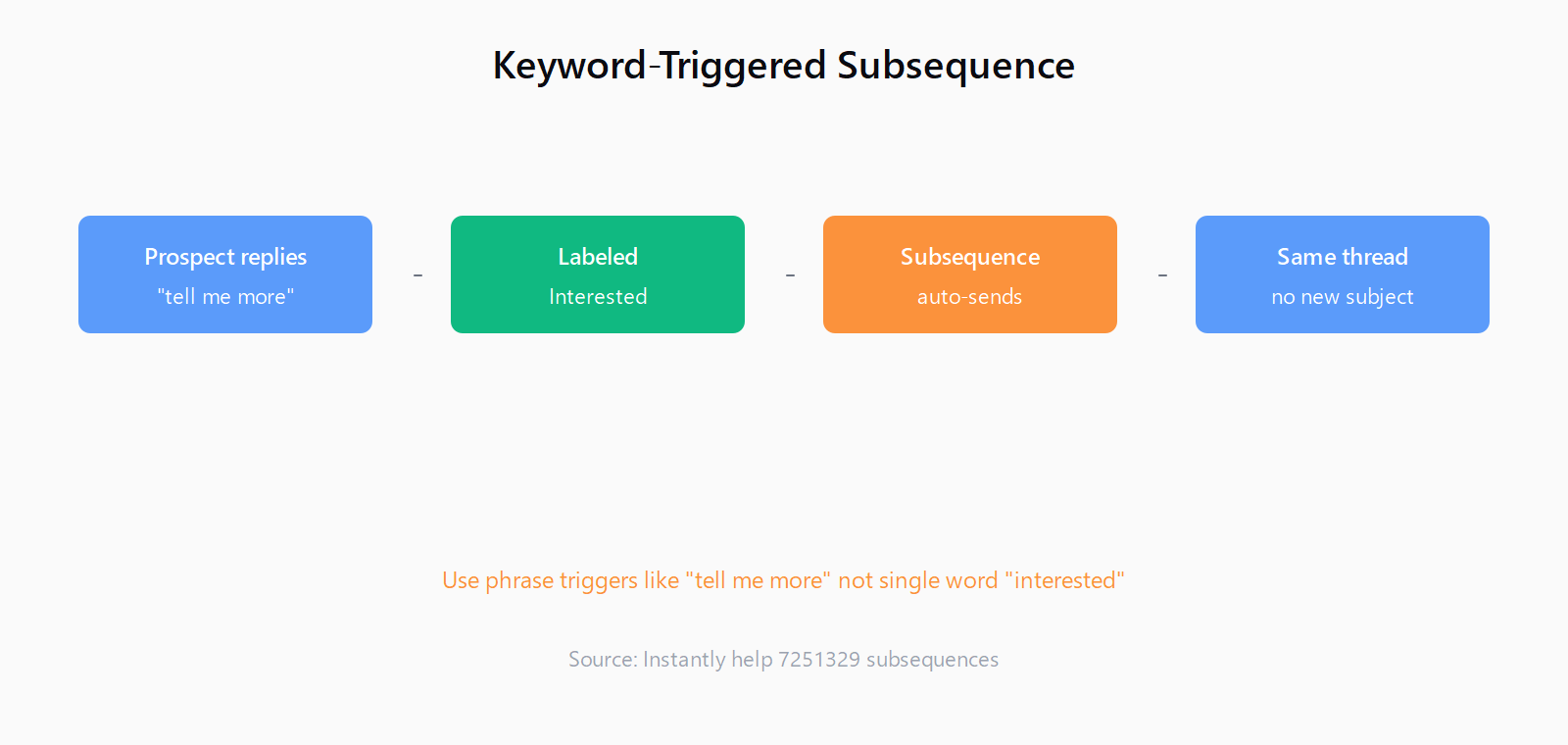
The trap is real, and I have seen it fire. Trigger on the bare word "interested" and the lead who replies "not interested, thanks" sails straight into whatever you send to hot prospects, which is the wrong lead getting the wrong email at the worst moment. Phrase matching exists because replies are full of negation that single keywords cannot see. "Interested in learning more" and "not interested, thanks" share a word and point in opposite directions, so match the whole phrase, not the word. Enter each full phrase you expect a real buyer to type, and treat the semicolon list as the only place your trigger logic lives.
How to set a keyword trigger for "interested" replies
Step 1: add a new subsequence and choose Keyword/Phrase as the trigger type. You do this from the Subsequences tab, which shows up only after the campaign is launched. Step 2: enter the phrases you actually expect to see, separated by semicolons. For an interested-reply flow I would start with a deliberately short list - "i am interested; tell me more; send me pricing; send over pricing; let's talk; book a call" - because every entry is simultaneously a way in and a way to misfire. You can always widen it after a week of real replies.
Step 3: decide whether to combine triggers. A status-based Interested trigger plus a keyword trigger on the same subsequence catches both the lead an SDR explicitly flagged and the one who self-identified in a reply before anyone looked at the inbox. Step 4: set how long to wait before the first subsequence email sends. The countdown starts the moment the lead enters the subsequence, and the schedule inherits from the campaign unless you override it.
How to write the subsequence email and keep it in the thread
With the trigger set, the real design work is the email. Because this fires automatically, it is the fastest reply the lead gets, so the first message should answer the question they just asked instead of re-opening the pitch. If the trigger phrase was "send me pricing," the email is a price page link plus two lines of framing; if it was "tell me more," the email is the short version of the case study you would send by hand. Write it the way you would answer the lead personally, because it arrives inside a conversation they already started.
One mechanic keeps it in that conversation: leave the subject line empty and Instantly appends the subsequence email to the same thread rather than starting a fresh message that could read as a second pitch or trip spam filters. That same-thread behavior is exactly what you are protecting when you A/B test subject lines in Instantly without breaking the thread, and it matters even more for replies.
Set the delay in days, hours, or minutes, and check what the day counter actually means before you trust it. The cold email follow-ups that fire on weekends are usually a calendar-day counting artifact in the main sequence, and a subsequence delay is a fresh place that same bug can hide if a two-day wait set on a Friday lands on Sunday.
One more thing worth knowing up front: subsequence emails sending after a reply is intentional. The main campaign's "Stop sending emails on reply" setting halts the numbered follow-ups, but Instantly's troubleshooting notes confirm that subsequence emails still go out after a reply because that is what they are for. If you do not want any message to follow a reply, do not create a keyword subsequence in the first place.
How to launch it without tripping your limits
Launching lives in the Options tab, and the daily limit setting matters most. The subsequence inherits the campaign's daily limit by default, or you can set a custom number or remove the cap for the subsequence alone. There is also an "Ignore Account Daily Limits" toggle that lets the subsequence send even after a mailbox hits its daily cap. Instantly's warning here is worth taking literally: turning it on means sending accounts can exceed configured limits, which hurts deliverability, especially for accounts still warming up. That is squarely cold email infrastructure territory, and the risk is not worth a same-day send for a reply that can wait until tomorrow.
The timing gotcha catches most people: subsequences only capture leads triggered after launch. Every lead already sitting in a status stays put until you move them. To handle your backlog, open the campaign's Leads section, filter by the status you care about, select the leads, and choose "Move to subsequence" from the top right. And if you run Instantly's OOO Resume feature for out-of-office handling, disable the Out of Office subsequence so the two do not double-send when someone returns.
All of this is downstream automation. Subsequences answer leads, but they can only answer the leads who are on your list, and the decision about which accounts deserve the outreach happens earlier - when someone turns a target market into actual companies and contacts. That earlier step is where Leadex sits: you describe the kind of account you want, approve a research plan, and get a deduped list in your CRM before the first email, or the first "interested" reply, ever exists.
The feature to keep an eye on is Instantly's AI reply agent, which lives in the same corner of the product and drafts replies instead of sending a fixed subsequence. I have not tested it enough to have a view yet. What I do know is that the deterministic keyword trigger is something you can set up this afternoon, fire at yourself to verify, and reason about with certainty - so that is where I would start, and where the copy still matters most.
FAQ
What is a subsequence in Instantly?
A subsequence is an automatic sequence attached to a launched campaign that sends when a lead meets a trigger: a status change such as Interested, an activity such as clicking a link, or a reply containing a keyword or phrase you defined. It runs independently of the main campaign's numbered follow-ups and only appears after that campaign is live.
Can a single word like "interested" trigger a subsequence?
Yes, and it is usually a mistake. A keyword trigger matches text inside the reply, so the word "interested" also fires on "not interested, thanks." Instantly recommends exact phrases such as "I am interested" or "tell me more," entered separated by semicolons, so a phrase is matched as a unit rather than a word appearing anywhere in the reply.
Why did a subsequence email send to a lead who already replied?
That is by design. The campaign's "Stop sending emails on reply" setting halts the numbered follow-ups, but subsequences exist to follow up after replies, so they still send. If you want no email after a reply, disable or change the subsequence triggers for that campaign.
Do subsequence emails count toward daily send limits?
They share the campaign's daily limit by default, though each subsequence can get a custom limit or no limit. A separate "Ignore Account Daily Limits" toggle lets a subsequence send past mailbox caps, which Instantly warns can hurt deliverability, particularly for accounts still warming up.
How do I move leads who are already marked Interested into a subsequence?
Subsequences only pick up leads that are triggered after launch. For leads already sitting in a status, open the campaign's Leads section, filter by that status, select the leads, and choose "Move to subsequence" in the top right corner.