
How to Fix HubSpot Enumeration Import Errors
Fix HubSpot AMBIGUOUS_ENUMERATION_OPTION errors by checking property options, internal values, and safe recovery of records that already imported.
HubSpot's AMBIGUOUS_ENUMERATION_OPTION import error means an incoming value does not resolve cleanly to a single allowed property option. Check the property's options and internal values before retrying. The record may have imported while the affected property remained empty, so treating the entire row as missing can create another problem during recovery.
How to identify what the import actually changed
HubSpot's import error reference explains that enumeration ambiguity can arise from matching multiple options or using a label where a different internal value is needed. It says the affected records can be imported without a value in that property. The error covers enumeration properties, including dropdowns, multiple checkboxes, and radio selections.
That documented outcome does not diagnose every failed column in your file. Read the downloaded errors and inspect an affected record before choosing a recovery path. If the record exists, the task may be a targeted property update. If the whole record failed for another reason, you have a different failure to resolve.
Save the source file and the error export before editing either. Keep the import identifier and the destination property name with them. The source column's friendly heading may resemble several CRM properties, and a teammate can easily inspect the wrong one. The exact mapped property is the object of the investigation.
Record one failed value verbatim, including spaces and capitalization. Do not clean it up while copying it into your notes. A version that looks nicer can conceal the distinction the importer rejected. The same caution applies to spreadsheet previews that format numbers or dates automatically; investigate the stored text you actually uploaded.
How to compare labels with internal option values
Open the mapped property's option definitions and compare the incoming value with the allowed entries. Look at labels and internal values separately. The label is what an operator expects to read; the internal value is part of the data contract. A rename in the interface does not establish that an exporter now sends the destination's expected representation.
Consider a hypothetical source exporting "Qualified - partner" while the destination option uses a different internal identifier. A person may understand the intended stage immediately. An automated import still needs an unambiguous mapping. Write that mapping down explicitly rather than depending on someone to recognize the label and manually choose the right value on each retry.
Another failure mode is a source that uses one word for two business concepts. For example, a partner classification and a customer status might both be labeled "Active" in different source columns. Correcting spelling will not fix an incorrect property mapping. Establish which concept the column represents before deciding which destination option is legitimate.
For multiple-choice properties, inspect the complete cell rather than one visible term. A source may intend several choices where the destination is expecting one, or use a representation intended for another importer. Check the destination's documented file format before altering separators. Guessing at punctuation is a poor substitute for confirming how the selected property accepts multiple values.
Keep a small conversion table beside the export definition: source value, approved destination value, and the reason for that choice. This table is a proposed operating aid, not a HubSpot feature requirement. It makes ambiguous business decisions visible before they become silent changes to segmentation or sales reporting.
A concrete option mapping and recovery file
Suppose your custom Partner classification property has the display label "Qualified - partner" and an internal value of partner_qualified. Those names are illustrative; copy the actual definitions from your own property. HubSpot's option-management instructions put the option table under Settings > Properties > Edit > Field type. A saved internal value cannot simply be renamed to rescue one export.
| Source value | Approved meaning | Import value in this example |
|---|---|---|
| Qualified - partner | Qualified partner | partner_qualified |
| Active customer | Existing customer | Review: wrong business concept |
| Blank | Unknown | Keep unresolved; do not guess |
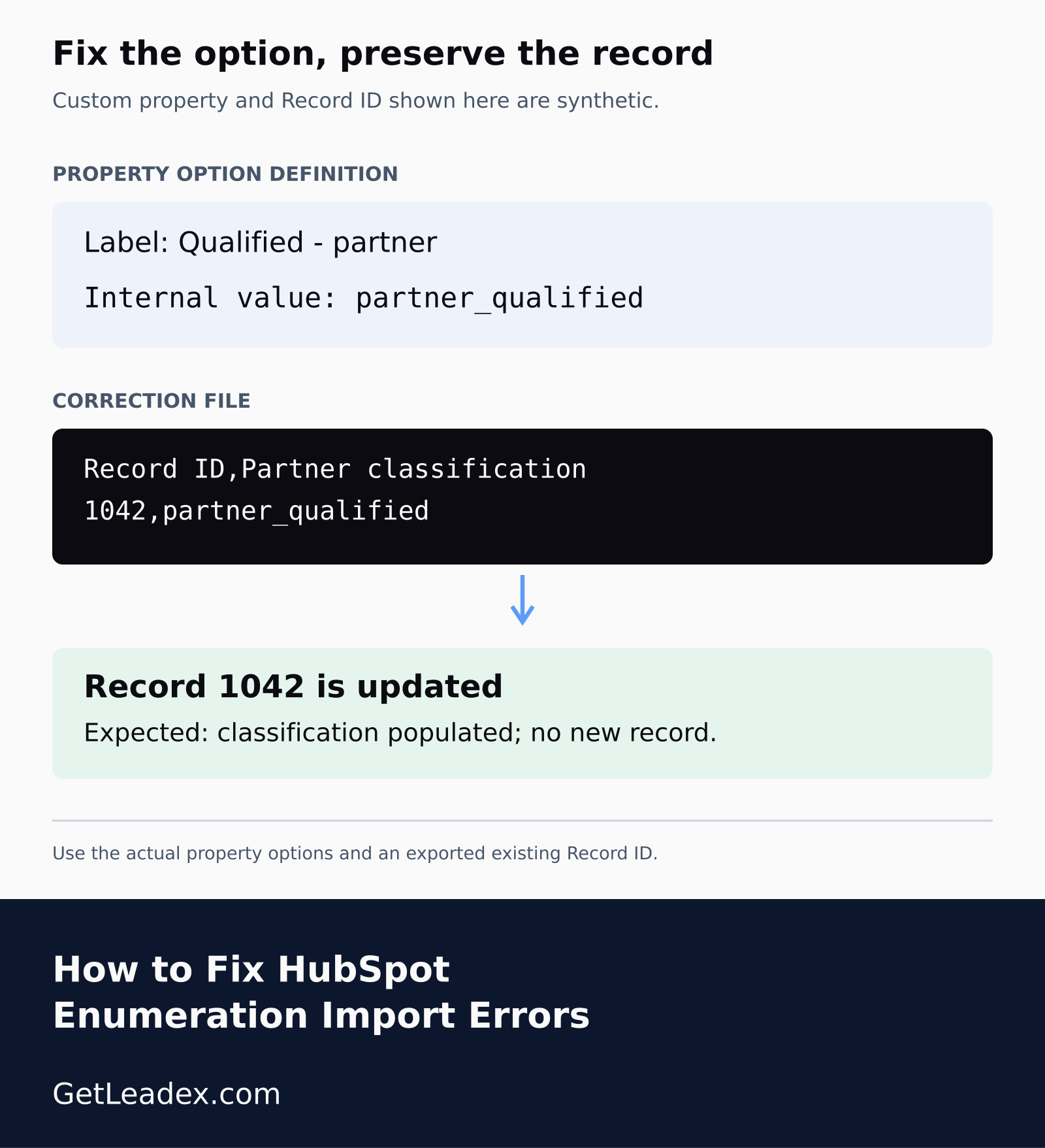
If record 1042 already exists and only this property was omitted, a minimal illustrative correction file could be:
Record ID,Partner classification
1042,partner_qualified
Map Record ID to the existing record identifier and Partner classification to the actual custom property. Follow HubSpot's file-format guidance and the chosen update mode. The number 1042 is synthetic: use an exported identifier from the affected record, not a spreadsheet row number or a new identifier invented for the import.
The expected result is the same record with the intended classification populated. If a second company appears instead, the recovery did not identify the existing record correctly. If the field remains blank, return to the error export and exact property options. If it shows a valid but commercially wrong option, revisit the approved translation rather than declaring success.
For a one-time correction, HubSpot also permits updating the property on the existing record. That can be simpler than another import when only a few rows are affected. For a recurring export, keep the same approved source-to-internal-value mapping in the export preparation step. Do not rename or merge shared options just to make one file acceptable; those changes can affect integrations, filters, and workflows outside the recovery.
How to repair the source and test a small update
The correction belongs where the incorrect value is produced. If a recurring export supplies labels instead of the agreed option values, update the export or transformation there. If a human chose the wrong mapped property, correct that mapping. Editing one CSV cell is useful for a test, but a recurring workflow needs the same rule applied to its later files.
Use a small recovery file with a reliable identifier for existing records and the affected property. Follow the importer settings appropriate to updating those records. The aim is to repair the missing value without recreating records or overwriting unrelated fields. Check the actual destination record after the test instead of relying only on a successful upload message.
Our HubSpot company deduplication guide covers the neighboring identity problem. Fixing an enumeration value does not prove that a retry will select the intended company. Keep identity and property validity as separate checks, especially when the original import created records successfully but omitted a single field.
This matters for lists prepared with Leadex. Research can produce a useful company classification, while the receiving CRM expects a controlled set of property options. Agree on that translation before importing. The research description should remain meaningful to the buyer, and the CRM value should satisfy the destination's actual contract.
After the small test succeeds, compare the recovered property with its intended meaning. A technically valid option can still be commercially wrong. Ask the property owner to confirm the translation when the options drive qualification, lifecycle reporting, or outreach eligibility. Passing validation is necessary, but the business meaning is what the next workflow will act on.
How to prevent the next ambiguous import
Watch for spreadsheet formulas that generate destination values from readable labels. A formula can remain syntactically valid after an option rename while producing an obsolete mapping. Keep the approved option table separate from presentation text, and inspect the exported values rather than only the spreadsheet's displayed headings. A preflight review should test the file that will actually be uploaded.
Keep the destination option definitions with the import preparation process and review the mapping when those definitions change. A person renaming an option should know which recurring files depend on it. The same general issue appears in Cognism-to-HubSpot field mapping: a connection can remain operational while its data contract stops matching the team's expectations.
I would keep a few representative rows as a preflight fixture for each recurring import. Include normal values, an empty value, and an unsupported one. The fixture should make an unsupported value obvious before the full file is uploaded. This is more maintainable than collecting a growing set of one-off spreadsheet corrections after every batch.
For the full recovery, reconcile the expected affected records with the updated records and any remaining errors. Save exceptions separately instead of repeatedly uploading the whole original dataset. A clear exception list gives the property owner a finite set of unresolved decisions without disturbing rows that already imported correctly.