How to Restore Apollo Extension Access on Prospect Profiles
Diagnose missing Apollo extension access by separating unsupported surfaces, session failures, permissions, and browser conflicts from missing contact data.
If Apollo's browser extension is missing on a prospect profile, first check that the page and browser support the action you expect. Then investigate the extension session, permissions, and conflicting tools. Clearing every browser setting at once can remove useful evidence while leaving an unsupported workflow unchanged.
How to separate missing data from a missing extension
Apollo's extension troubleshooting guide says Sales Navigator search pages can show suggested leads while bulk prospecting actions are unsupported there. It directs users to the corresponding standard LinkedIn profile when information is unavailable. The guide also distinguishes supported browsers and platforms from unsupported surfaces. Establish that boundary before treating the behavior as a local failure.
Write down what is absent. Does the extension icon open? Does a sidebar appear without the expected record? Does it show information on one profile but fail on another? Does a control exist but remain unavailable? These descriptions make a support case much more useful than "Apollo is broken," and they prevent an operator from troubleshooting data coverage by reinstalling software.
Use a supported profile where the team already knows what normal behavior looks like as a neighboring case. Keep it separate from the reported prospect. If the extension renders normally there, you have evidence that installation and basic access work somewhere. You have not yet proven why the other profile differs, but you have narrowed the part of the workflow worth investigating.
For a hypothetical Sales Navigator search result, move to the individual's standard LinkedIn profile and retry the supported action. If that works, record the surface difference. Do not describe it as a recovered bulk capability. The useful operating instruction is where to perform the supported action, not how to make an unavailable control appear.
How to check the extension session and browser
Apollo's guide recommends reloading the extension, resetting the Apollo session, and checking for updates. Its general unexpected-behavior guide also advises checking service status, permissions, duplicate tabs, and extension interference. Follow a sequence and retry the original action after each change, so a successful result has an explanation.
Change one relevant condition before retrying. If an operator signs out, updates the browser, clears data, and disables every extension before retrying, nobody knows which change mattered. A fix that cannot be explained is difficult to repeat when another rep encounters the same symptom during a prospecting session.
Start with the least disruptive change that fits the evidence. Reload the extension and the affected page, then retest. If the session appears stale, sign out and back in using the intended Apollo account. Check the profile again before moving on. Keep a short record of the observation and result rather than a long checklist with every box marked automatically.
Compare the signed-in account with the account that owns the expected access. A rep switching browser profiles or workspaces can easily inspect a different environment from the one an administrator reviewed. Do not assume a successful login establishes the right permissions. Ask the administrator to verify access for the specific account and action you are testing.
Use a symptom-to-action decision path
Take a hypothetical rep who sees suggested leads on a Sales Navigator search page but cannot bulk prospect from it. The first useful comparison is the same person's standard LinkedIn profile. If the supported profile action works, installation repair is the wrong next step: the unavailable bulk action was never established as supported. Save the standard-profile URL in the team's operating instructions.
| Observed result | Next check |
|---|---|
| Only the Sales Navigator bulk action is missing | Use the corresponding standard profile; verify the supported action |
| Apollo panel fails on supported pages too | Reload the extension and page, then reset the Apollo session |
| Panel works in a clean profile but not the regular one | Compare other extensions and managed settings |
| Panel loads, but the person has no usable contact data | Investigate record identity and coverage |
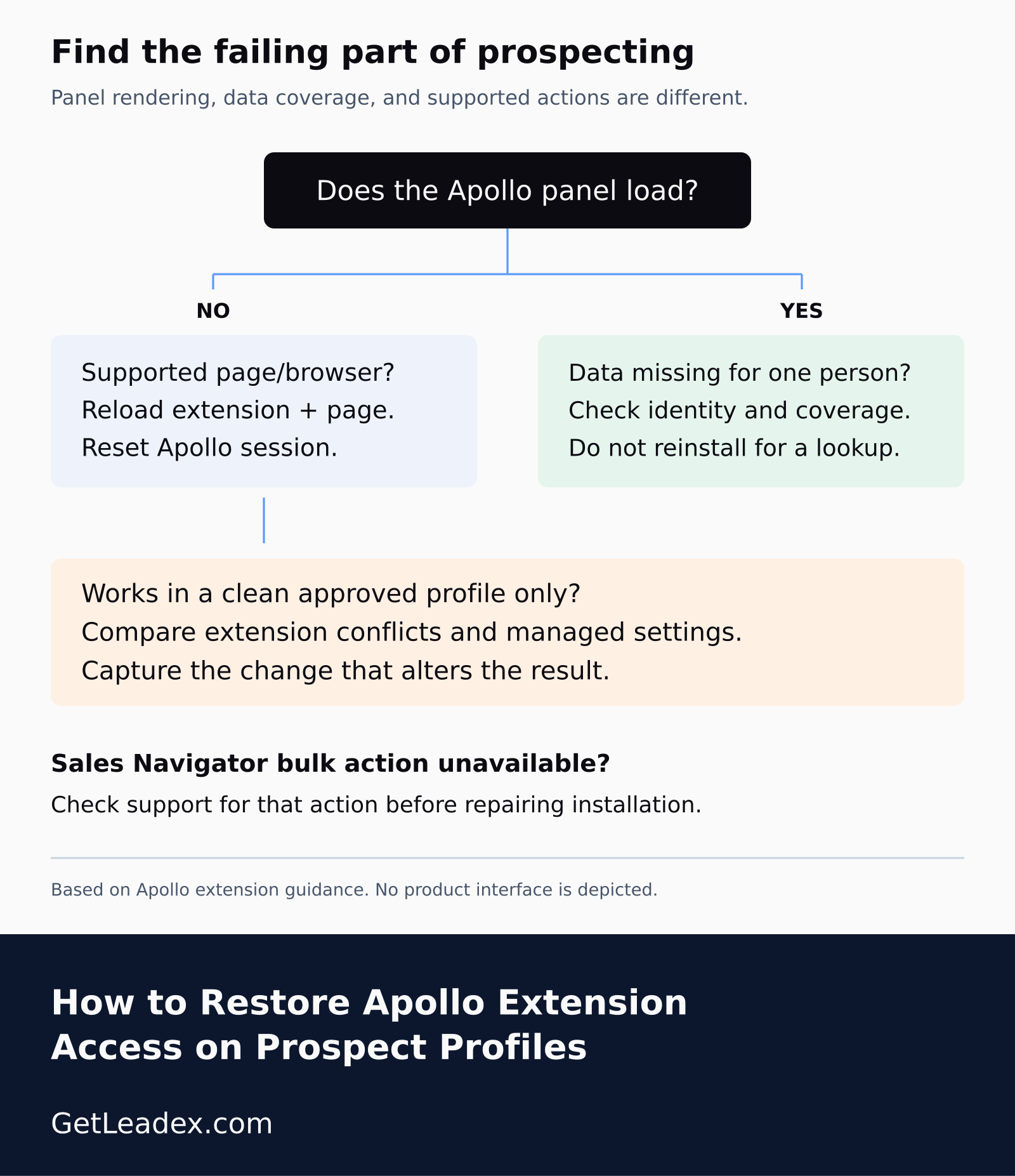
To reload, open Chrome's Extensions menu, use the menu beside Apollo.io, choose Reload Apollo Extension, and reload the affected page. If that does not help, sign out of Apollo, sign back into the same intended account, and retry the same action. These steps come from the current extension guide. Keep the comparison page unchanged while testing.
A clean-profile comparison is an experiment, not a permanent fix by itself. For example, if the same action succeeds with only Apollo enabled and fails after a particular extension is re-enabled, record that change for the administrator. Re-enable tools one at a time so the comparison identifies the combination involved. Do not remove a required security control just to get a sidebar back.
If you use an incognito test, Apollo must first be allowed in Incognito under its extension details and you must sign into Apollo there. An empty private window without the extension running is not a valid comparison. Do not turn off organization policy to create the test; use an approved profile or ask the browser administrator to reproduce it.
For escalation, capture the supported page type, browser and extension versions, whether the browser is managed, and which of these comparisons changed the result. A screenshot of a missing panel helps, but a reproducible difference between two environments gives support a much more precise place to investigate.
How to isolate permissions and extension conflicts
If the problem remains, inspect site access and relevant managed-browser settings with your administrator. A company policy can affect an extension even when the user cannot change it locally. Keep the request specific: the affected URL, action, browser profile, and observed behavior. Asking for unrestricted browser access is a much larger change than proving a particular permission is missing.
For a suspected conflict, compare behavior with other extensions temporarily disabled in a controlled test profile. Reintroduce them individually and retry the same action. A result that changes only when a particular extension is enabled is useful evidence. Do not permanently remove security software or broaden access solely because the combination looks suspicious.
Apollo documents scoped cookie allowances and domain checks for security tools. Have the administrator review the current vendor instructions before changing those controls. The goal is to permit the supported integration path, not to weaken settings across unrelated websites. If policy prevents the workflow, the resolution belongs with the policy owner rather than an improvised local bypass.
This is a practical distinction for Leadex users too. A chat brief and approved research plan can cover multiple sources, while a browser extension operates inside particular page contexts. Choose the workflow that fits the research task. Neither approach makes an unsupported surface supported or turns an unavailable contact record into verified data.
Another failure mode is an extension that appears correctly but displays no useful information for a particular prospect. Keep that case out of the browser-repair experiment. Compare the prospect's identity and company details, then investigate data availability through the relevant Apollo workflow. A visible sidebar proves a different thing from a successful contact lookup.
How to verify access before returning to prospecting
Keep service incidents separate from browser-specific evidence. If several reps using different managed profiles lose the same supported feature at the same time, check the vendor's service status before asking everyone to rebuild their local setup. If only one profile fails, preserve a working comparison from the same period. Neither observation proves the cause on its own, but it changes the most useful next check. Save work before any reset, and record whether the reported behavior changes after the service recovers or the profile configuration changes. The team should not confuse waiting for an incident to end with discovering a local repair.
Return to the original profile and repeat the exact supported action. Then test another profile on the same supported surface and the previously working neighboring case. Confirm that the extension remains usable after an ordinary page reload. A single successful sidebar opening immediately after a reset is encouraging, but repeatable behavior is the stronger result.
For account research beyond an individual profile, our guide to Sales Navigator Account IQ covers a different part of the process. Keep those research features separate from extension diagnostics. A sales team can otherwise spend time repairing a browser panel that was never responsible for the missing research output.
Once the tool works, verify the prospecting outcome as well as the interface. Check the intended person and company before saving or exporting. Our article on building useful Apollo prospect lists addresses that next quality check. Restored access gets the workflow moving; it does not by itself establish that the selected prospects fit the audience.